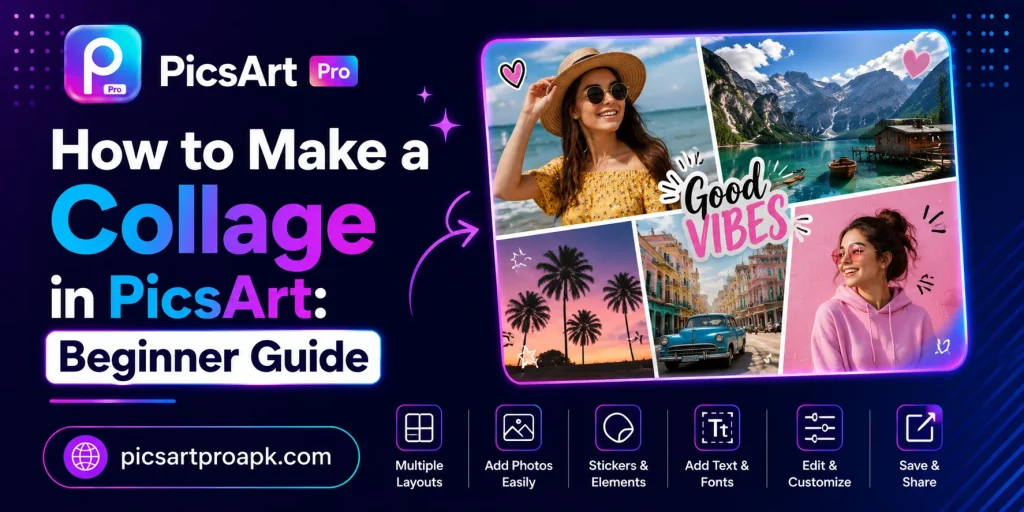
How to Make a Collage in PicsArt: Beginner Guide
Collages bring multiple photos together into one creative and organized layout. They work well for memories, social posts, and themed photo albums. PICSARTPROAPK.COM shares this beginner guide to help you create collages using PicsArt.
What Is a Collage
A collage combines several photos into a single image using grids, frames, or freeform layouts. This style helps tell a story or showcase multiple moments at once. PicsArt offers built in templates that make collage creation quick and simple.
Why People Make Collages
Collages serve different purposes depending on the occasion or platform. Below are common reasons people choose this format.
- Showcasing multiple photos from an event or trip
- Creating birthday or holiday themed photo grids
- Designing before and after comparison images
- Building social media posts with multiple highlights
- Making printable photo albums or gifts
Requirements Before You Start
A few basics make the collage creation process smoother.
| Requirement | Details |
|---|---|
| App Version | Latest PicsArt update |
| Photos | Multiple images selected in advance |
| Device | Android phone with 4GB RAM or higher |
| Internet | Stable connection for template loading |
| Storage | Space for saving final exported collage |
Step by Step Guide to Make a Collage in PicsArt
Follow these steps to design a clean and organized collage.
Step 1: Start a New Collage Project
Launch the app and tap the plus icon to begin a new project. Select the Collage option from the available tools. Choose the photos you want to include from your gallery.
Step 2: Pick a Layout Template
Browse through the available grid and freeform layout options. Select a template that fits the number of photos and desired style. Simple grids work well for clean and organized results.
Step 3: Arrange the Photos
Drag and drop each photo into its designated spot within the layout. Adjust zoom and position within each frame for the best crop. Make sure important details in each photo remain visible.
Step 4: Adjust Borders and Spacing
Use the border and spacing options to add gaps between photos if desired. Thin borders often give a cleaner and more modern look. Adjust corner styles for a rounded or sharp finish based on preference.
Step 5: Add Text or Stickers
Enhance the collage with text captions, dates, or decorative stickers. This step adds personality and context to the final design. Keep additions simple to avoid cluttering the overall layout.
Step 6: Save and Export
Export the finished collage in high resolution for sharing or printing. Save it to your gallery or share it directly on social media. PICSARTPROAPK.COM users can export collages without watermark restrictions.
Tips for Better Collage Design
These tips help create more visually appealing collages.
- Choose photos with similar lighting and tone
- Keep spacing consistent across all frames
- Limit text to short and readable captions
- Use a theme or color scheme for cohesive design
- Preview the collage before final export
Common Mistakes to Avoid
Avoid these common errors when building a collage.
- Selecting too many photos for a small layout
- Ignoring photo quality differences between images
- Overcrowding the design with excessive stickers or text
- Choosing a layout that crops important photo details
- Skipping a final review before saving
Best Situations to Use This Feature
Collage making fits many personal and professional needs.
For Personal Memories
Users create collages to celebrate birthdays, trips, and family events. This format brings multiple memories together in one shareable image. It works well for both digital sharing and physical prints.
For Social Media Content
Creators use collages to showcase before and after transformations or multi part stories. This layout increases engagement by presenting more visual information at once. It also helps organize content in a visually appealing way.
For Business Marketing
Businesses use collages to display product variations or customer testimonials together. This method saves space while presenting multiple pieces of information clearly. It works well for social media promotions and advertisements.
Frequently Asked Questions
How many photos can I use in one collage? The number depends on the chosen template, with most layouts supporting between two and nine photos. PICSARTPROAPK.COM recommends starting with simple layouts for beginners.
Can I customize collage templates further? Yes, users can adjust spacing, borders, and photo placement within most templates for a personalized look.
Is collage making free in PicsArt? Basic collage templates are available for free users, while some premium layouts may require an unlock.
Can collages be printed after editing? Yes, exporting in high resolution ensures collages remain clear and sharp when printed physically.
Final Thoughts
Making a collage in PicsArt is a simple way to bring multiple photos together into one creative design. Whether for personal memories or business marketing, this feature offers flexibility for every need. Visit PICSARTPROAPK.COM to download the app and start building your own collages today.