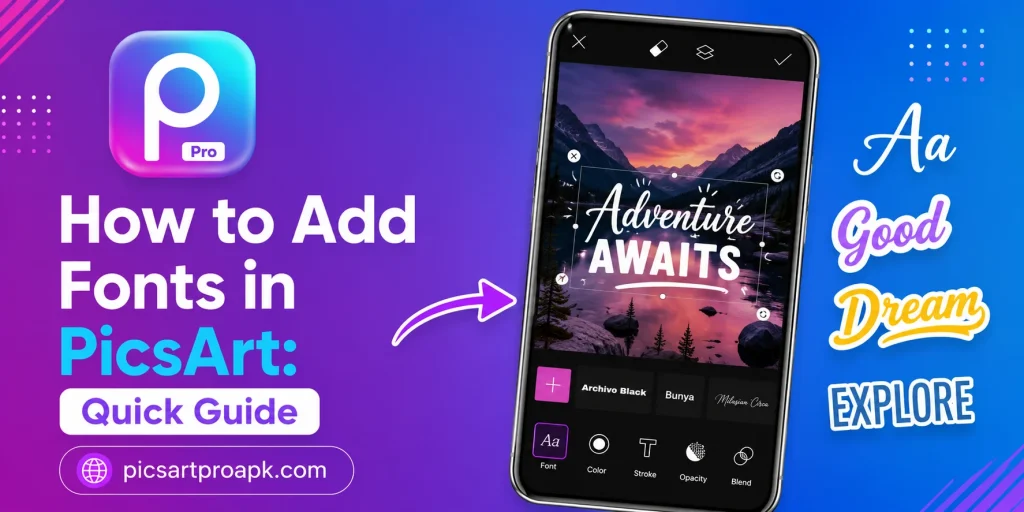
How to Add Fonts in PicsArt: Quick Guide
Text style can change the entire mood of a photo or design. Plain default fonts often fail to match the theme of a creative project. PICSARTPROAPK.COM shares this quick guide to help you add and use custom fonts in PicsArt.
Why Custom Fonts Matter
Fonts carry personality and set the tone of any design. A bold font suits announcements while a soft script fits invitations and quotes. Custom fonts help content look more professional and unique compared to default styles.
Common Uses for Custom Fonts
Different projects call for different font styles depending on the goal. Below are common situations where custom fonts add real value.
- Creating quote posts for social media
- Designing invitations and event posters
- Making branded content for a business page
- Adding captions to photos and reels
- Building custom logos and text designs
Requirements Before You Start
A few basics make the font adding process simple and error free.
| Requirement | Details |
|---|---|
| App Version | Latest PicsArt update |
| Font Files | TTF or OTF format files |
| Device | Android phone with file manager access |
| Internet | Stable connection for downloading fonts |
| Storage | Space for saving font files locally |
Step by Step Guide to Add Fonts in PicsArt
Follow these steps to bring new font styles into your projects.
Step 1: Download Font Files
Search for free font websites and download the TTF or OTF file you like. Save the file to a known folder on your device. Choose fonts that match the mood of your planned design.
Step 2: Open the Text Tool in PicsArt
Launch the app and open the photo or project you are working on. Tap on the Text tool from the bottom menu. Type the text you want to style with a new font.
Step 3: Access the Font Library
Inside the text panel, look for the Fonts option. This opens a library of built in styles already available in the app. Scroll through to see if a matching style already exists.
Step 4: Import a Custom Font
If the built in library does not have what you need, tap on the Add Font or Import option. Select the downloaded font file from your device storage. The app will add it to your available font list.
Step 5: Apply and Adjust the Font
Select the new font from the list and apply it to your text. Adjust size, color, and spacing to fit the design. Preview the text over the photo before finalizing.
Step 6: Save and Export
Once happy with the text placement, export the photo in high quality. Save it to your gallery or share it directly online. PICSARTPROAPK.COM users enjoy full font access without extra restrictions.
Tips for Choosing the Right Font
A good font choice improves readability and design appeal.
- Match font style with the photo theme
- Avoid using more than two font styles together
- Keep text color in contrast with the background
- Test different sizes before finalizing
- Save favorite fonts for quick future use
Common Mistakes to Avoid
These small errors can weaken an otherwise strong design.
- Choosing fonts that are hard to read
- Using too many font styles in one design
- Placing text over busy photo areas
- Ignoring color contrast between text and background
- Forgetting to preview before final export
Best Situations to Use Custom Fonts
Custom fonts serve many creative and business needs.
For Social Media Content
Creators use unique fonts to make quote posts and captions stand out. A strong font choice increases engagement and shareability. This helps build a recognizable content style over time.
For Business Branding
Small businesses use specific fonts to match their brand identity. Consistent font use across posts builds trust and recognition. This method works well for logos, posters, and promotional content.
For Personal Projects
Users add custom fonts to birthday cards, invitations, and personal photo edits. This makes the design feel more personal and thoughtful. Simple font changes often make a big visual difference.
Types of Fonts to Consider
Different font categories suit different design goals and moods. Understanding these categories helps narrow down choices faster. The table below breaks down common font styles and their typical use.
| Font Type | Best For | Mood Created |
|---|---|---|
| Serif Fonts | Formal quotes and invitations | Classic and elegant |
| Sans Serif Fonts | Modern captions and branding | Clean and simple |
| Script Fonts | Personal and romantic designs | Soft and expressive |
| Bold Display Fonts | Titles and announcements | Strong and attention grabbing |
Serif Fonts
Serif fonts include small lines at the end of each letter stroke. These fonts often suit formal designs like wedding invitations or elegant quotes. They add a classic and trustworthy feel to text based content.
Sans Serif Fonts
Sans serif fonts have clean lines without extra strokes at letter ends. These work well for modern branding and social media captions. Their simplicity makes them easy to read across different screen sizes.
Managing Multiple Fonts
As font collections grow, organizing them becomes important for efficient workflow. A few simple habits keep font libraries manageable over time.
Organizing Downloaded Fonts
Create folders on your device to sort fonts by style or project type. This makes finding the right font faster during future editing sessions. Clear naming conventions also help avoid confusion between similar styles.
Removing Unused Fonts
Periodically review imported fonts and remove ones no longer needed. This keeps the app’s font list clean and easier to navigate. PICSARTPROAPK.COM recommends reviewing font libraries every few months for better organization.
Who Benefits Most From Custom Fonts
Custom font usage supports many different types of projects and users.
- Social media managers creating branded quote graphics
- Small business owners matching fonts to brand identity
- Event planners designing invitations and posters
- Content creators adding stylish captions to photos
- Students designing projects and presentations
Advanced Tips for Font Pairing
Combining fonts effectively takes some practice but improves overall design quality.
- Pair a bold display font with a simple sans serif for balance
- Avoid combining two decorative fonts in one design
- Use size differences to create visual hierarchy
- Keep consistent font pairing across a full project
- Test font combinations at actual output size before finalizing
Frequently Asked Questions
Can I use any font file in PicsArt? Most TTF and OTF font files work with the import feature. PICSARTPROAPK.COM recommends checking file format before attempting to import.
Are custom fonts free to use? Many fonts online are free for personal use, but always check the license. Commercial projects may require a paid or licensed font.
Can I remove a font after importing it? Yes, imported fonts can usually be removed from the app settings menu. This helps keep your font list organized over time.
Does font size affect photo quality? Font size does not affect overall photo quality if exported correctly. Always preview the final design before saving.
Final Thoughts
Adding fonts in PicsArt is a simple way to elevate the look of any photo or design. Custom fonts bring personality and professionalism to social posts, branding, and personal projects. Visit PICSARTPROAPK.COM to download the app and start exploring new fonts today.