PicsArt AI Avatar: Create Your Digital Avatar
Digital avatars have become a fun and popular way to represent yourself online. They offer a creative twist on regular profile pictures across social platforms. PICSARTPROAPK.COM shares this guide to help you create your own AI avatar using PicsArt.
What Is an AI Avatar
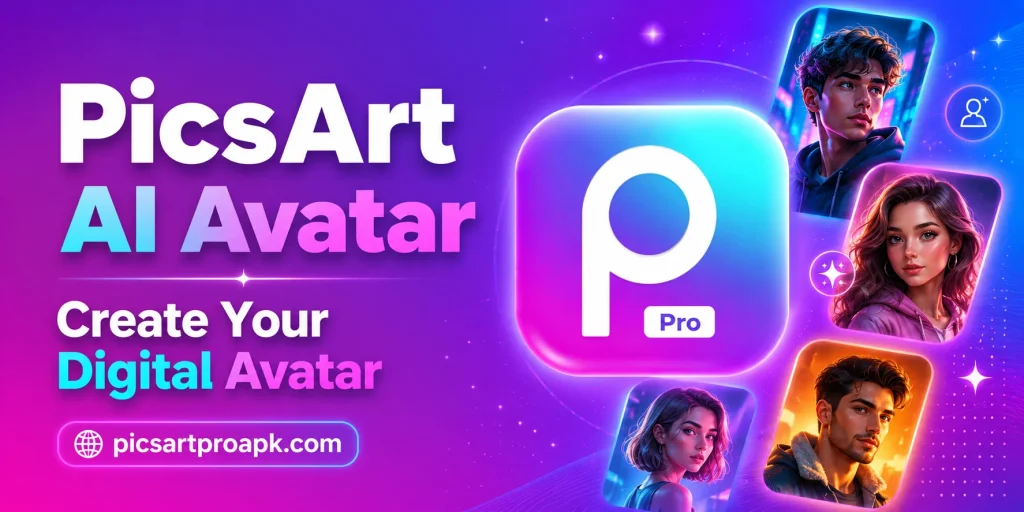
An AI avatar is a stylized digital version of a person created using artificial intelligence. The tool analyzes a regular photo and transforms it into different artistic styles. This feature allows users to explore creative looks without any drawing skills.
Why People Use AI Avatars
AI avatars serve various purposes across social media and personal projects. Below are common reasons this feature has become popular.
- Creating unique profile pictures for social platforms
- Exploring different artistic styles based on personal photos
- Designing characters for games or creative projects
- Sharing fun transformations with friends and followers
- Building a consistent digital identity across platforms
Requirements Before You Start
A few basics help the avatar creation process work smoothly.
| Requirement | Details |
|---|---|
| App Version | Latest PicsArt update |
| Photo Quality | Clear front facing photo |
| Device | Android phone with 4GB RAM or higher |
| Internet | Stable connection for AI processing |
| Lighting | Even lighting on the face |
Step by Step Guide to Create an AI Avatar
Follow these steps to generate your own digital avatar.
Step 1: Open the AI Avatar Tool
Launch the app and navigate to the AI Tools section from the main menu. Look for the AI Avatar option among the listed features. Tap to open the photo selection screen.
Step 2: Upload Your Photo
Select a clear, front facing photo from your gallery or take a new one. Good lighting and a neutral background often produce better results. Avoid photos with sunglasses or heavy shadows on the face.
Step 3: Choose an Avatar Style
Browse through the available style options like cartoon, fantasy, or realistic themes. Select a style that matches your desired look or mood. Different styles can produce very different final results from the same photo.
Step 4: Generate the Avatar
Tap the generate button and wait for the AI to process the transformation. The tool will typically produce several avatar variations to choose from. Review each option carefully before making a selection.
Step 5: Customize Further
Use standard editing tools to adjust colors, add effects, or crop the final avatar. This step allows for additional personalization beyond the AI generated result. PICSARTPROAPK.COM recommends experimenting with different adjustments for unique results.
Step 6: Save and Export
Export the final avatar in your preferred resolution and format. Save it to your gallery or set it directly as a profile picture. High quality export ensures the avatar looks sharp on any platform.
Tips for Better Avatar Results
These tips help improve the quality of generated avatars.
- Use a clear and well lit original photo
- Try multiple styles to find the best match
- Avoid heavily edited or filtered source photos
- Experiment with different angles for varied results
- Save several avatar versions for different platforms
Common Mistakes to Avoid
Avoid these errors when creating an AI avatar.
- Using blurry or poorly lit source photos
- Choosing a style that does not match personal preference
- Skipping the review step before finalizing an avatar
- Ignoring further customization options after generation
- Forgetting to save the original photo separately
Best Situations to Use This Feature
AI avatars fit many personal and creative use cases.
For Social Media Profiles
Users create avatars as unique profile pictures across different platforms. This adds personality while maintaining some privacy compared to a real photo. Consistent avatar use also helps with personal brand recognition.
For Gaming and Online Communities
Gamers and community members use avatars to represent themselves in digital spaces. Stylized avatars often fit better within gaming aesthetics than real photos. This feature supports creative self expression in these communities.
For Fun and Sharing
Many users simply enjoy creating avatars to share with friends for entertainment. Trying different styles on the same photo often leads to fun comparisons. This casual use case has helped the feature gain popularity.
Frequently Asked Questions
Is the AI Avatar feature free to use? Basic avatar generation is available for free users with some style limitations. PICSARTPROAPK.COM notes that premium plans may unlock additional styles.
Can I use my avatar for commercial purposes? Usage rights depend on PicsArt’s current terms of service, so reviewing these guidelines before commercial use is recommended.
Why does my avatar not look like me? AI interpretation can vary based on photo quality and lighting, so trying a different source photo often improves accuracy.
Can I create multiple avatars from one photo? Yes, users can generate multiple style variations from the same original photo for comparison.
Final Thoughts
Creating an AI avatar in PicsArt is a fun and simple way to explore digital self expression. With various styles and easy customization options, anyone can design a unique avatar in minutes. Visit PICSARTPROAPK.COM to download the app and create your own AI avatar today.