How to Change Clothes Color in PicsArt: Step by Step Guide
Clothes color plays a big role in how a photo looks and feels. Sometimes a photo looks dull just because the outfit color does not match the background or mood. PICSARTPROAPK.COM brings you a simple guide to change clothes color in PicsArt without any editing skills.
What Is Clothes Color Change in PicsArt
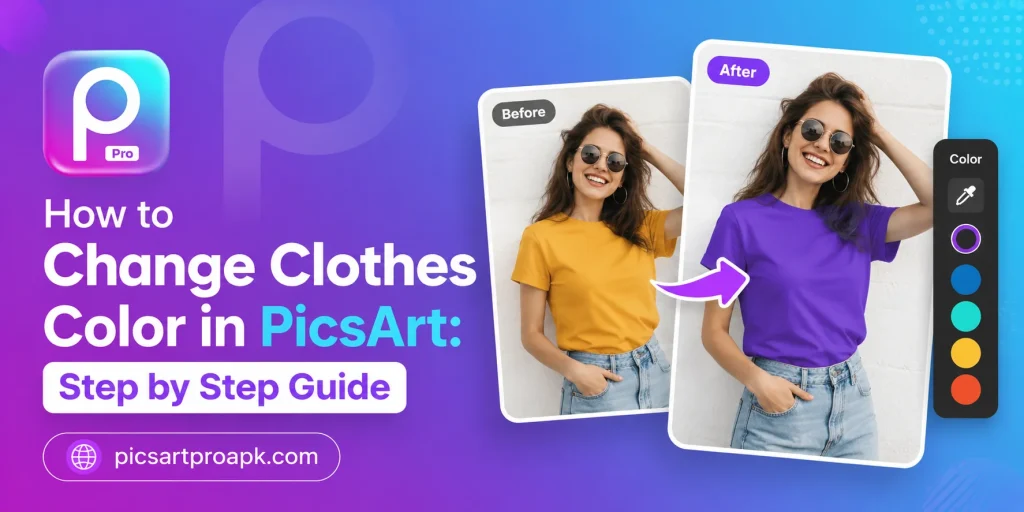
Clothes color change is a feature that lets you pick any part of an image and give it a new shade. You can turn a plain white shirt into red, blue, or any color you like. This tool works on shirts, dresses, jackets, and almost every fabric type in a photo.
Why People Change Clothes Color in Photos
Many users want their photos to look fresh without buying new clothes. A quick color change can match an outfit to an event, a theme, or a personal choice. Below are some common reasons people use this feature.
- Match clothes with a wedding or party theme
- Fix a faded or dull-looking outfit color
- Create different looks from a single photo
- Design content for social media pages
- Test how a different color would look before buying real clothes
Requirements Before You Start
Before you begin the process, keep a few basic things ready. This will make the editing smooth and the result more accurate.
| Requirement | Details |
|---|---|
| App Version | Latest PicsArt app installed |
| Photo Quality | Clear and well-lit image |
| Device | Android phone with 4GB RAM or higher |
| Internet | Stable connection for tool loading |
| Storage | At least 200MB free space |
Step by Step Guide to Change Clothes Color in PicsArt
Follow these steps carefully and the result will look natural. The process is simple even for a first-time user.
Step 1: Open the Photo in PicsArt
Launch the app and tap on the plus icon to start a new project. Select the photo where you want to change the clothes color and open it in the editor. Make sure the outfit area is clearly visible in the picture.
Step 2: Select the Tools Option
Once the photo is open, go to the Tools section at the bottom of the screen. Search for the Recolor or Selection tool depending on your app version. Tap on it to open the color editing panel.
Step 3: Select the Clothes Area
Use your finger to draw over the clothes area you want to color. Zoom in for small or tricky spots like sleeves and collars. The app will highlight the selected part in a different shade so you can check the accuracy.
Step 4: Choose a New Color
After the selection, a color wheel or palette will appear on the screen. Pick a shade that matches your idea or the photo theme. You can also adjust brightness and saturation to make the color look real.
Step 5: Blend the Edges
Sometimes the new color may look sharp at the edges of the clothes. Use the blend or feather option to soften these lines. This step makes the final photo look more natural and less edited.
Step 6: Save and Export
Once you are happy with the result, tap on the export button. Choose the photo quality you want and save it to your gallery. PICSARTPROAPK.COM users get access to high-resolution export without any watermark issue.
Tips for Better Results
A few small tips can make a big difference in the final output. These tips are used by professional editors as well.
- Always work on a photo with good lighting
- Avoid colors that clash with the skin tone
- Zoom in while selecting small areas like buttons and straps
- Use the undo option if the selection goes wrong
- Compare before and after using the split screen view
Common Mistakes to Avoid
New users often make small errors that affect the final photo quality. Here are the most common ones to keep in mind.
- Selecting too much or too little area of the clothes
- Skipping the blend step and leaving harsh edges
- Choosing a color too close to the background
- Working on a blurry or dark photo
- Forgetting to save a backup of the original image
Best Situations to Use This Feature
Clothes color change is not just for fun edits. It has real uses across different needs and platforms.
For Personal Photos
Users often change the clothes color of old photos to make them look fresh again. This works well for family albums and profile pictures. A simple color change can bring new life to an old memory.
For Social Media Content
Content creators use this feature to make their posts stand out. A unique clothes color can match brand themes or seasonal trends. This small trick often increases engagement on posts.
For Business and Product Shots
Online sellers use color change to show one product design in multiple shades. This saves time and money instead of shooting new photos for each color. Buyers get a clear idea of how a product looks in different variations.
Tools You Can Use for Clothes Color Change
PicsArt offers more than one way to change clothes color, and each tool works better for a different type of photo. Knowing which tool fits your image saves time and gives a cleaner result. The table below shows a quick comparison of these tools.
| Tool Name | Best For | Skill Level |
|---|---|---|
| Recolor Tool | Plain and solid color clothes | Beginner |
| Selection Tool | Detailed or curved clothing areas | Intermediate |
| AI Replace | Full outfit change with a new design | Beginner |
| Adjust Tool | Fine tuning of shade and tone | Intermediate |
Recolor Tool
The Recolor tool works best for shirts, dresses, and jackets with a single flat color. It detects the fabric area automatically in most cases and applies the new shade with one tap. This tool is a good starting point for beginners.
Selection Tool
The Selection tool gives full manual control over the area you want to color. It works well for clothes with folds, shadows, or curved shapes like sleeves and collars. This method takes a little more time but gives a more accurate result.
AI Replace
AI Replace can swap an entire outfit style along with its color in one step. This tool uses artificial intelligence to understand the shape of the clothing before applying changes. It saves time on photos where more than just color needs an update.
How This Feature Compares to Other Apps
Many photo editing apps offer some form of color change, but the process and result differ across platforms. PicsArt stands out because of its blend of manual and AI-based tools in one place. Below is a simple comparison to help you understand where it fits.
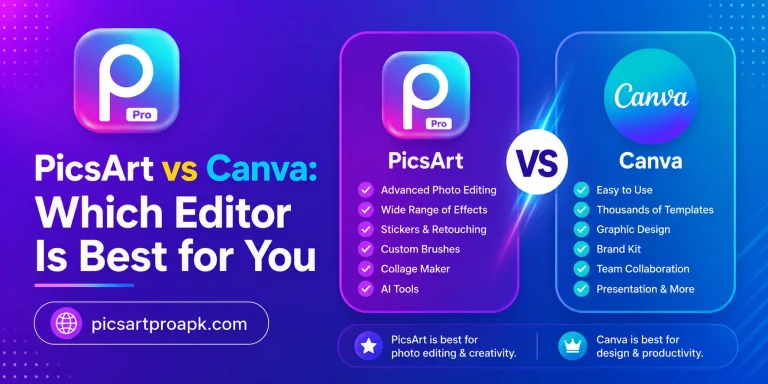
- Canva: Offers basic color adjustment but lacks a dedicated clothes recolor tool
- Snapseed: Provides selective color change but requires more manual masking
- Photoshop Express: Has strong color tools but a steeper learning curve for beginners
- PicsArt: Combines automatic detection with manual selection for faster results
Editing on Different Devices
Clothes color change is not limited to one device type. The steps stay almost the same, though the layout of buttons may shift slightly.
On Android Phones
The mobile version of PicsArt gives full access to the Recolor and Selection tools. Touch controls make it easy to zoom in on small areas of clothing. Most users find the mobile app faster for quick edits on the go.
On PC or Desktop
Desktop editing gives more precision because of mouse control instead of touch. Users working on detailed fashion photos or product shots often prefer this method. PICSARTPROAPK.COM provides guidance for setting up PicsArt on a PC through an emulator if the desktop app is not available in your region.
Who Benefits Most From This Feature
Different types of users find this tool useful for different reasons. The list below covers the groups who gain the most value from clothes color editing.
- Fashion bloggers showing outfit variations without new photoshoots
- Online store owners displaying one product in multiple color options
- Event planners matching outfit themes for weddings or parties
- Social media creators designing eye-catching posts and reels
- Everyday users refreshing old or faded photos for personal use
Frequently Asked Questions
Can I change clothes color without losing photo quality? Yes, if you use the correct tool and export at high resolution, the quality stays the same. PICSARTPROAPK.COM recommends using the latest app version for the best output.
Does this feature work on patterned clothes? It works best on plain or lightly patterned fabric. Heavy patterns may need extra blending to look natural.
Is this tool free to use? The basic color change tool is available for free users. Some advanced color options may need a premium unlock.
Can I undo the color change after saving? Once exported, the change becomes permanent on that file. Always keep the original photo saved separately before editing.
Final Thoughts
Changing clothes color in PicsArt is a simple task once you know the right steps. It helps personal photos, social posts, and business images look better without extra cost. Visit PICSARTPROAPK.COM to download the latest version and try this feature on your own photos today.