Eyebrow Editing in PicsArt: Complete Beginner Guide
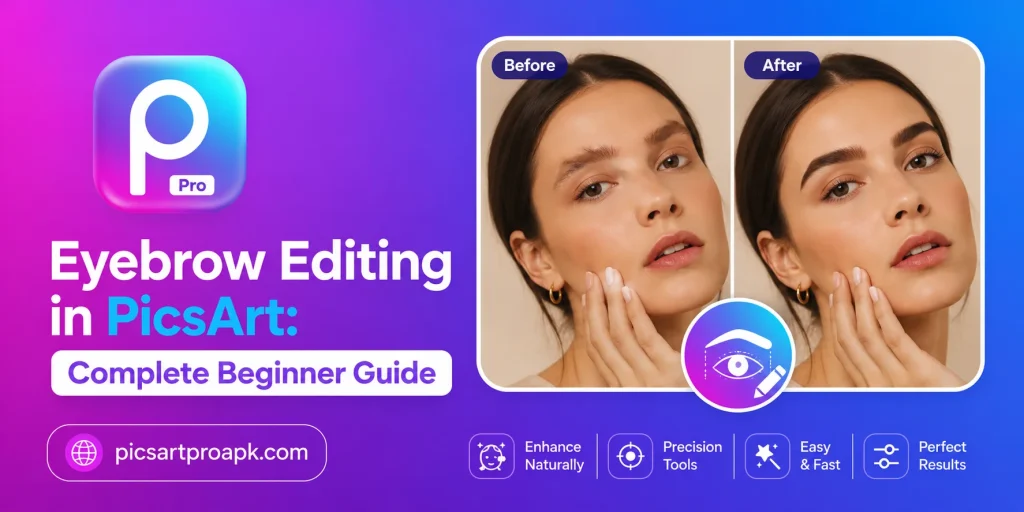
Eyebrows shape the entire look of a face in any photo. A small flaw in eyebrow shape or color can pull attention away from an otherwise great picture. PICSARTPROAPK.COM shares this simple guide to help you fix and style eyebrows using PicsArt.
Why Eyebrow Editing Matters
Eyebrows frame the eyes and affect how expressions look in a photo. Sparse, uneven, or faded eyebrows can make a portrait look incomplete. A quick fix with the right tool brings balance and confidence back to the face.
Common Eyebrow Issues in Photos
Many users face similar problems when editing close-up or portrait shots. Knowing these issues helps you pick the right tool faster.
- Thin or sparse eyebrow hair
- Uneven shape between left and right brow
- Faded color due to poor lighting
- Stray hairs breaking the natural line
- Shine or shadow covering brow area
Requirements Before You Start
A few basics make the editing process smoother and the final result cleaner.
| Requirement | Details |
|---|---|
| App Version | Latest PicsArt update |
| Photo Type | Clear close-up or portrait shot |
| Device | Android phone with 4GB RAM or higher |
| Internet | Stable connection for tool loading |
| Zoom Support | Screen with pinch to zoom feature |
Step by Step Guide to Edit Eyebrows in PicsArt
Follow these steps in order for the most natural looking result.
Step 1: Open the Photo
Launch the app and select the portrait photo you want to edit. Open it inside the main editing screen. Make sure the face and eyebrow area appear sharp and well lit.
Step 2: Go to the Retouch Tool
Tap on the Tools option and search for Retouch in the list. This section holds all face related editing options including eyebrows. Select the eyebrow feature once the panel opens.
Step 3: Reshape the Eyebrow
Use your finger to trace the new shape you want along the brow line. The tool will adjust hair direction and fill in thin areas automatically. Zoom in for better accuracy on small details.
Step 4: Adjust Color and Thickness
Pick a shade that matches the natural hair color for a realistic look. Slide the thickness option to fill sparse patches without looking fake. Compare both eyebrows to keep them balanced.
Step 5: Remove Stray Hairs
Use the small eraser tool to clean up hairs that break the brow line. This step gives a neat and polished finish. Work slowly to avoid removing too much natural texture.
Step 6: Save and Export
Once satisfied with the result, export the photo in high quality. Save it directly to your gallery or share it on social media. PICSARTPROAPK.COM users get full access to this tool without a watermark.
Tips for Natural Looking Eyebrows
A few small habits make a big difference in the final output.
- Work with a zoomed in view for precision
- Match brow color with hair or skin tone
- Avoid making brows too thick or dark
- Check both eyebrows side by side
- Use light pressure when reshaping
Common Mistakes to Avoid
New users often repeat a few errors that ruin an otherwise good edit.
- Choosing a color too dark for the skin tone
- Making one eyebrow thicker than the other
- Skipping the zoom step on small screens
- Editing under poor lighting conditions
- Forgetting to save the original photo first
Best Situations to Use This Feature
Eyebrow editing is useful across several types of photos and needs.
For Personal Portraits
Users often fix eyebrow shape in personal photos before posting online. This small change boosts confidence and photo quality instantly. It works well for profile pictures and casual portraits.
For Beauty and Makeup Content
Content creators in the beauty space use this tool to show different eyebrow styles. It helps demonstrate makeup looks without physical application. This saves time during content planning and photo shoots.
For Old or Faded Photos
Old photographs sometimes lose clarity in facial features including eyebrows. This tool restores definition and brings the face back to life. Family photo restoration becomes much easier with this method.
Tools Available for Eyebrow Editing
PicsArt offers more than one way to fix and style eyebrows depending on the photo condition. Knowing which tool fits your situation saves time and produces a cleaner result. The table below compares these available options.
| Tool Name | Best For | Skill Level |
|---|---|---|
| Retouch Brush | Filling sparse or thin brows | Beginner |
| Reshape Tool | Correcting uneven brow shape | Intermediate |
| Color Adjust | Matching brow color to hair | Beginner |
| Eraser Tool | Removing stray hairs | Beginner |
Retouch Brush
The Retouch Brush works well for filling in sparse patches along the brow line. It blends new hair strokes with the existing pattern for a natural finish. This tool suits quick fixes on otherwise good quality photos.
Reshape Tool
The Reshape Tool allows manual adjustment of the overall brow outline. This helps correct asymmetry between the left and right eyebrow. It requires a steady hand but gives more precise control over the final shape.
Editing on Different Devices
Eyebrow editing works across both mobile and desktop versions of PicsArt. The core steps remain similar, though the controls differ slightly.
On Android Phones
Mobile editing relies on touch gestures for tracing and adjusting brow shape. Pinch to zoom helps with small and detailed adjustments. Most users find the phone app convenient for editing photos on the go.
On PC or Desktop
Desktop editing offers more precision through mouse based control. This method suits users working on detailed beauty content or professional portraits. PICSARTPROAPK.COM provides setup guidance for using PicsArt through an emulator on desktop devices.
Who Benefits Most From This Feature
Different types of users find eyebrow editing valuable for different reasons.
- Beauty content creators showing eyebrow shaping tutorials without physical changes
- Everyday users fixing sparse or uneven brows in casual photos
- Photographers offering quick touch ups for client portraits
- Social media users improving selfies before posting online
- Family photo restorers bringing back detail lost in old pictures
Advanced Tips for Precise Results
A few extra practices help achieve a more refined final look.
- Use reference photos for a desired brow shape
- Work at higher zoom levels for detailed correction
- Apply color adjustments gradually rather than all at once
- Save multiple versions to compare different brow styles
- Review the edit on both light and dark backgrounds
Frequently Asked Questions
Does eyebrow editing work on all skin tones? Yes, the tool adjusts based on the photo and works across different skin tones. PICSARTPROAPK.COM recommends testing a few color shades before finalizing the result.
Can this tool fix very thin eyebrows? It works well for thin or sparse brows by filling gaps naturally. Extremely bare areas may need a slightly stronger edit for full coverage.
Is the eyebrow tool free to use? The basic retouch feature is available for free users. Some advanced brush options may require a premium unlock.
Will the edit look fake in close-up photos? Natural results depend on matching color and thickness correctly. Careful editing keeps the look realistic even in close shots.
Final Thoughts
Eyebrow editing in PicsArt is a quick way to improve any portrait photo. It fixes shape, fills gaps, and balances color without needing professional skills. Visit PICSARTPROAPK.COM to download the app and start editing your photos today.