PicsArt AI Image Generator: Text to Image Guide
Creating original images no longer requires a camera or advanced design skills. PicsArt’s AI Image Generator turns simple text into complete visuals within seconds. PICSARTPROAPK.COM shares this guide to help you get started with text to image creation.
What Is the AI Image Generator
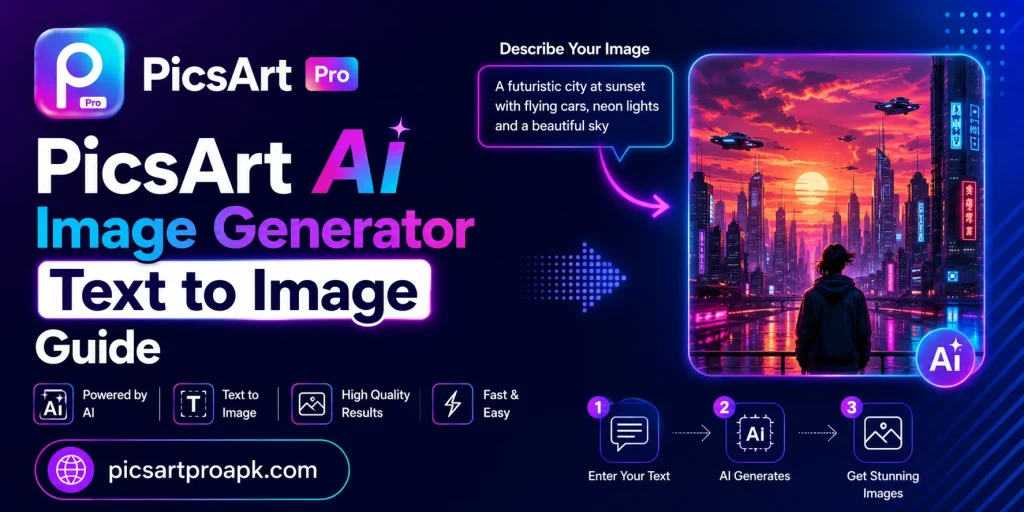
The AI Image Generator is a tool that creates images based on written descriptions. Users type a prompt describing what they want, and the AI produces a matching visual. This feature removes the need for stock photos or original photography in many projects.
Why Use Text to Image Tools
This technology offers several benefits for different types of users. Below are common reasons people rely on AI generated images.
- Creating unique visuals without stock photo costs
- Designing content when original photos are unavailable
- Testing creative ideas quickly before full production
- Generating backgrounds for posters and social posts
- Producing artistic images for personal or business use
Requirements Before You Start
A few basics help the image generation process work smoothly.
| Requirement | Details |
|---|---|
| App Version | Latest PicsArt update |
| Internet | Stable connection for AI processing |
| Device | Android phone with 4GB RAM or higher |
| Prompt Idea | Clear description of desired image |
| Account | Signed in PicsArt account required |
Step by Step Guide to Use AI Image Generator
Follow these steps to create your first AI generated image.
Step 1: Open the AI Tools Section
Launch the app and navigate to the AI Tools section from the main menu. Look for the Image Generator option among the listed features. Tap to open the text input screen.
Step 2: Write a Clear Prompt
Type a description of the image you want to create. Include details like subject, style, and mood for better accuracy. Specific prompts generally produce more relevant results than vague ones.
Step 3: Select a Style Option
Choose from available style options like realistic, artistic, or fantasy themes. This helps guide the AI toward the desired visual outcome. Experiment with different styles for the same prompt to compare results.
Step 4: Generate the Image
Tap the generate button and wait a few seconds for the AI to process the request. The tool will produce one or more image options based on the prompt. Review each result to select the best match.
Step 5: Edit the Generated Image
Use standard PicsArt tools to adjust color, add text, or apply filters to the generated image. This step allows further customization for specific project needs. PICSARTPROAPK.COM recommends combining AI generation with manual editing for best results.
Step 6: Save and Export
Export the final image in your preferred resolution and format. Save it to your gallery or use it directly in another project. High quality export ensures the image looks sharp across different platforms.
Tips for Writing Better Prompts
Prompt quality directly affects the accuracy of generated images.
- Be specific about subject, color, and setting
- Mention art style if a particular look is needed
- Avoid overly complex or contradictory descriptions
- Experiment with different wording for varied results
- Keep prompts focused on one main idea at a time
Common Mistakes to Avoid
Avoid these errors to get better results from the tool.
- Writing vague prompts without enough detail
- Ignoring style options that could improve accuracy
- Expecting perfect results without any prompt adjustment
- Skipping the review step before finalizing an image
- Forgetting to edit generated images for project fit
Best Situations to Use This Feature
AI image generation supports many creative and practical needs.
For Content Creators
Creators use generated images for blog posts, social media, and video thumbnails. This saves time compared to searching for suitable stock photos. Unique visuals also help content stand out from competitors.
For Small Businesses
Businesses use AI generated visuals for marketing materials and product concepts. This reduces costs associated with professional photography or stock image licenses. Quick turnaround also supports fast paced marketing campaigns.
For Personal Creative Projects
Individuals use this tool for fun projects, artwork, and personal design ideas. It allows experimentation without needing artistic skills. This makes creative expression accessible to a wider range of users.
Frequently Asked Questions
Is the AI Image Generator free to use? Basic generation is available for free users with some daily limits. PICSARTPROAPK.COM notes that premium plans offer higher generation limits and quality.
Can I use generated images commercially? Usage rights depend on PicsArt’s current terms of service, so reviewing these guidelines before commercial use is important.
Why do some prompts produce unexpected results? AI interpretation can vary based on prompt wording, so refining and testing different descriptions often improves accuracy.
Can generated images be edited further? Yes, all generated images can be edited using standard PicsArt tools for additional customization.
Final Thoughts
The AI Image Generator in PicsArt opens new creative possibilities without needing a camera or design expertise. With clear prompts and a bit of experimentation, anyone can create unique visuals for personal or business use. Visit PICSARTPROAPK.COM to download the app and start generating images today.